

Video editing has become one of the most valuable skills in today’s digital world. From YouTube videos and Instagram Reels to business advertisements and professional presentations, video content is everywhere.
Many students, beginners and content creators want to learn video editing but do not want to spend money on expensive software. The good news is that several powerful video editing tools are available for free.
If you are searching for the best free video editing software for PC, you have multiple options to choose from. Some tools are perfect for beginners, while others offer professional-level editing, visual effects, colour grading and advanced audio editing.
In this blog, we will explore the 10 best free video editing software programs for PC in 2026, their features, advantages, limitations and which one you should choose.
What Is Video Editing Software?
Video editing software is a computer application that allows users to modify, arrange and improve video clips to create professional-looking videos.
Using video editing software, you can:
- Cut, trim and merge video clips.
- Add background music and sound effects.
- Insert text, subtitles and animations.
- Apply transitions and visual effects.
- Adjust brightness, contrast and colours.
- Remove unwanted parts from videos.
- Export videos in different resolutions.
Video editing software is widely used by YouTubers, digital marketers, filmmakers, social media managers, businesses and professional video editors.
Top 10 Best Free Video Editing Software for PC in 2026
Let’s explore some of the best free video editing tools available for Windows PC.
1. DaVinci Resolve
Best For: Professional Video Editing
DaVinci Resolve is one of the most powerful video editing software programs available for PC. It is widely used by professional video editors, filmmakers and content creators.
Its free version provides advanced editing capabilities, making it an excellent option for people who want to learn professional video editing without purchasing expensive software.
Key Features:
- Professional video editing tools.
- Advanced colour correction and colour grading.
- Visual effects and motion graphics.
- Audio editing using Fairlight.
- Multi-track video editing.
- High-resolution video export.
Advantages:
- Powerful professional editing features.
- Excellent colour grading tools.
- Suitable for YouTube and professional projects.
- Free version supports Ultra HD 4K editing and export in supported workflows.
Limitations:
- Requires a relatively powerful computer.
- Beginners may find the interface complicated.
- Advanced features require time to learn.
2. CapCut Desktop
Best For: Social Media Content and Reels
CapCut is a popular video editing application used by social media creators. Its desktop version allows users to edit videos directly on their computers.
It is particularly useful for creating Instagram Reels, YouTube Shorts, promotional videos and engaging social media content.
Key Features:
- Automatic subtitle generation.
- Ready-made templates.
- Video transitions and effects.
- Background removal tools.
- Text animations.
- Audio and music editing.
Advantages:
- Beginner-friendly interface.
- Useful for short-form video content.
- Easy-to-use editing tools.
- Multiple creative effects and templates.
Limitations:
- Some features require a Pro subscription.
- Certain templates and effects are paid.
- Export options may depend on the selected features and subscription.
3. Shotcut
Best For: Free and Open-Source Video Editing
Shotcut is a free, open-source video editing software that works on Windows, macOS and Linux.
It provides useful editing features without requiring users to purchase a subscription. It is suitable for beginners as well as intermediate-level video editors.
Key Features:
- Wide video format support.
- Multi-track editing.
- Colour correction.
- Audio filters.
- Video transitions.
- 4K video editing support.
Advantages:
- Completely free and open source.
- No paid subscription required.
- Supports multiple video formats.
- Useful audio and video editing tools.
Limitations:
- Interface may take time to understand.
- Some advanced workflows require technical knowledge.
- Less beginner-friendly than simple template-based editors.
4. OpenShot
Best For: Beginners Learning Video Editing
OpenShot is another free and open-source video editing software designed for people who want to learn basic video editing.
Its simple interface makes it easier for beginners to understand video editing concepts.
Key Features:
- Drag-and-drop editing.
- Unlimited editing tracks.
- Video trimming and resizing.
- 3D animated titles.
- Video transitions.
- Slow-motion and time effects.
Advantages:
- Free to download and use.
- Easy-to-understand interface.
- Suitable for basic editing projects.
- Supports multiple video formats.
Limitations:
- Complex projects may affect performance.
- Limited advanced professional tools.
- Rendering can take time on lower-end computers.
5. Microsoft Clipchamp
Best For: Quick Video Editing on Windows
Microsoft Clipchamp is a user-friendly video editing application available through Windows and web browsers.
It is a good option for beginners who want to create simple videos without learning complicated editing techniques.
Key Features:
- Ready-made video templates.
- Text and title animations.
- Background music.
- Screen and webcam recording.
- Basic transitions.
- Video resizing and trimming.
Advantages:
- Beginner-friendly interface.
- Easy integration with Windows.
- Useful templates for social media.
- Free exports up to 1080p.
Limitations:
- Some premium assets require payment.
- 4K export requires a paid plan.
- Internet access may be needed for certain features.
6. VSDC Free Video Editor
Best For: Advanced Editing on Windows PC
VSDC Free Video Editor is a Windows-based video editing application that offers several useful tools for creating professional-looking videos.
It is suitable for users who want more editing control without immediately investing in paid software.
Key Features:
- Non-linear video editing.
- Colour correction.
- Video effects and filters.
- Green screen editing.
- Motion tracking.
- Audio editing tools.
Advantages:
- Offers several advanced editing features.
- Suitable for Windows users.
- Useful for YouTube video production.
- Includes screen recording capabilities.
Limitations:
- Interface can be confusing initially.
- Some advanced features are available in the Pro version.
- Learning the complete software takes time.
7. Kdenlive
Best For: Open-Source Professional Editing
Kdenlive is a free and open-source video editing application that provides advanced editing tools for users who want greater control over their projects.
It is useful for editing long videos, educational content, YouTube videos and other creative projects.
Key Features:
- Multi-track video editing.
- Audio and video effects.
- Keyframe animations.
- Colour correction.
- Proxy editing.
- Customisable editing interface.
Advantages:
- Completely free and open source.
- Supports multiple video tracks.
- Useful for advanced editing workflows.
- Available for Windows, Linux and macOS.
Limitations:
- Beginners may need tutorials.
- Interface requires practice.
- Performance depends on computer hardware.
8. Lightworks
Best For: Professional Editing Workflows
Lightworks is a video editing application designed for people interested in professional video production.
It offers a range of editing tools for creating videos, films and other creative content.
Key Features:
- Multi-track timeline.
- Video transitions.
- Audio editing.
- Colour correction.
- Timeline-based editing.
- Video trimming and arrangement.
Advantages:
- Professional-style editing workflow.
- Useful timeline editing tools.
- Suitable for learning advanced editing concepts.
Limitations:
- Free version has export restrictions.
- Some features require a paid subscription.
- Beginners may need time to understand the interface.
9. Blender
Best For 3D Animation and Visual Effects
Blender is a powerful free and open-source 3D creation software. Although it is mainly known for 3D modelling and animation, it also includes a Video Sequence Editor.
It is an excellent choice for creators interested in combining video editing with animation and visual effects.
Key Features:
- Video sequence editing.
- 3D modelling.
- Animation creation.
- Visual effects.
- Motion tracking.
- Audio and video arrangement.
Advantages:
- Completely free and open source.
- Powerful 3D animation tools.
- Suitable for creative projects.
- Supports advanced visual effects workflows.
Limitations:
- Difficult for complete beginners.
- Requires practice to understand.
- More complicated than traditional video editors.
10. VideoProc Vlogger
Best For Vlogging and Creative Video Editing
VideoProc Vlogger is a free video editing application designed for vloggers and content creators.
It offers useful tools for editing action footage, travel videos and YouTube content.
Key Features:
- Speed adjustment.
- Motion simulation.
- Colour correction.
- Audio editing.
- Video stabilisation.
- Green screen effects.
Advantages:
- Beginner-friendly editing workflow.
- Useful speed-ramping features.
- Suitable for vloggers.
- Supports creative video editing.
Limitations:
- Fewer advanced professional tools.
- Smaller ecosystem compared to major editing applications.
- Some complex editing workflows may require alternative software.
Comparison of the Top 10 Free Video Editing Software
Here is a quick comparison to help you select the right video editing software for your requirements.
| Software | Best For | Free Version | Platform |
|---|---|---|---|
| DaVinci Resolve | Professional Editing | Yes | Windows, Mac, Linux |
| CapCut | Reels and Shorts | Yes | Windows, Mac |
| Shotcut | Open-Source Editing | Yes | Windows, Mac, Linux |
| OpenShot | Beginners | Yes | Windows, Mac, Linux |
| Clipchamp | Quick Editing | Yes | Windows, Web |
| VSDC | Advanced Windows Editing | Yes | Windows |
| Kdenlive | Multi-Track Editing | Yes | Windows, Mac, Linux |
| Lightworks | Professional Workflow | Yes | Windows, Mac, Linux |
| Blender | 3D Animation and VFX | Yes | Windows, Mac, Linux |
| VideoProc Vlogger | Vlogging | Yes | Windows, Mac |
Note: Some software programs offer free and paid versions. Features, export quality and limitations may vary depending on the version.
Which Is the Best Free Video Editing Software for Beginners?
If you are new to video editing, choosing complicated software can make learning difficult.
Here are our recommendations based on your experience level:
| User Type | Recommended Software |
|---|---|
| Complete Beginners | OpenShot |
| Instagram Reels Creators | CapCut |
| YouTube Beginners | Clipchamp |
| Professional Video Editors | DaVinci Resolve |
| 3D Animation Creators | Blender |
| Open-Source Software Users | Shotcut |
| Advanced Windows Users | VSDC |
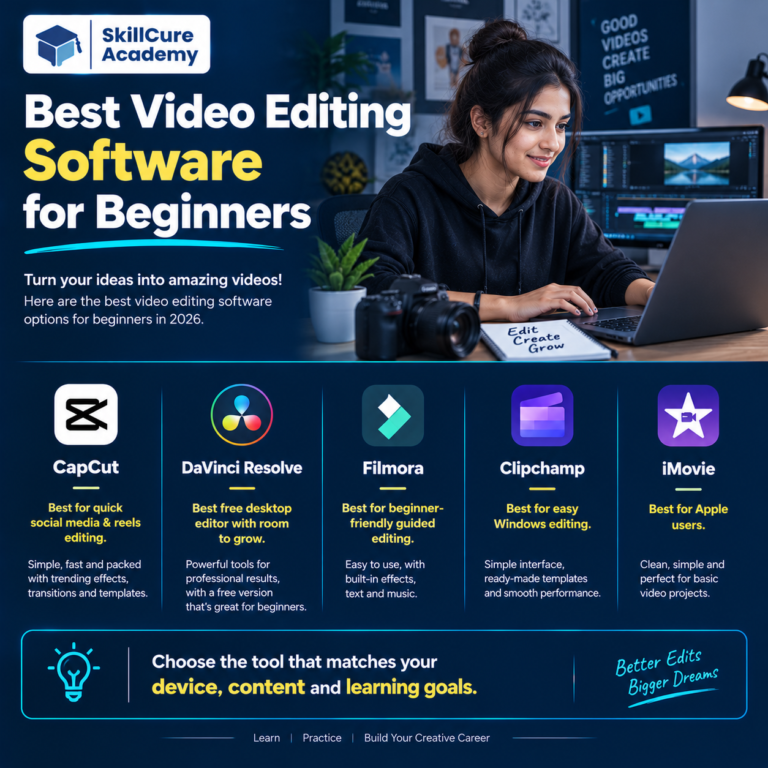
If you want to learn professional video editing, DaVinci Resolve is an excellent starting point. However, if your primary goal is creating short social media videos, CapCut can be a more convenient option.
Minimum System Requirements for Video Editing Software
Before downloading any video editing software, check whether your PC can handle it.
Video editing requires processing power, RAM and sufficient storage space.
Here is a general hardware recommendation:
| Component | Basic Editing | Recommended for Professional Editing |
|---|---|---|
| Processor | Intel Core i3 / Ryzen 3 | Intel Core i5 / Ryzen 5 or better |
| RAM | 8 GB | 16 GB or 32 GB |
| Storage | 256 GB SSD | 512 GB SSD or higher |
| Graphics Card | Integrated Graphics | Dedicated GPU |
| Operating System | Windows 10/11 | Windows 11 |
Important: These are general hardware recommendations, not the official minimum requirements for every application. Always check the individual software requirements before installation.
How to Choose the Best Video Editing Software for PC?
Choosing the right software depends on your editing requirements, computer specifications and experience level.
Consider these important factors before downloading any application.
1. Check Your Computer Specifications
Some editing applications require more processing power than others. If you have a basic laptop, choose lightweight software.
2. Look for Watermark-Free Export
Some free video editors add watermarks to exported videos or restrict certain export features.
Always check the export policy before starting a project.
3. Check Video Resolution Support
If you create YouTube videos or professional content, choose software that supports Full HD or 4K editing according to your requirements.
4. Check Available Editing Features
Look for important features such as:
- Video transitions.
- Colour grading.
- Audio editing.
- Text animations.
- Green screen.
- Multi-track editing.
5. Consider Your Future Requirements
If you want to build a career in video editing, choose software that offers advanced editing capabilities and opportunities to develop professional skills.
Why Should You Learn Video Editing in 2026?
Video content is becoming an important part of digital marketing, entertainment, education and business communication.
Companies, brands, influencers and content creators need engaging videos to connect with their audiences.
Learning video editing can help you explore different career opportunities, including:
- Video Editor
- YouTube Video Editor
- Social Media Video Editor
- Freelance Video Editor
- Motion Graphics Designer
- Content Creator
- Digital Marketing Executive
You can also use your editing skills to create personal projects, promotional videos, advertisements and educational content.
With practical knowledge and a strong portfolio, you can explore freelance opportunities and full-time career options.
Frequently Asked Questions (FAQs)
1. Which is the best free video editing software for PC in 2026?
DaVinci Resolve is one of the best free video editing software programs for PC. It provides professional editing, colour grading, visual effects and audio editing tools.
2. Which free video editing software is best for beginners?
OpenShot and Microsoft Clipchamp are good choices for beginners because they offer simple interfaces and basic editing tools.
3. Which video editing software is best for YouTube videos?
DaVinci Resolve is an excellent option for professional YouTube videos. CapCut and Clipchamp are also useful for creating YouTube Shorts and simple content.
4. Can I edit 4K videos using free video editing software?
Yes. Software such as DaVinci Resolve and Shotcut supports 4K video editing. However, smooth performance depends on your computer’s hardware.
5. Can I learn video editing without professional software?
Yes. You can start learning video editing using free applications such as OpenShot, Shotcut and CapCut. Once you understand the basics, you can move towards more advanced editing software.