

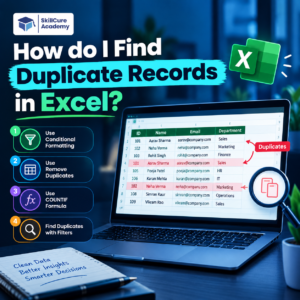

Duplicate records are one of the most common data-cleaning problems in Excel. Whether you are working with customer lists, sales data, employee records, or survey responses, duplicate entries can affect your analysis and lead to incorrect results.
Fortunately, Excel provides several simple ways to identify and remove duplicate records. In this guide, we’ll explore different methods, from Conditional Formatting to COUNTIF, COUNTIFS, UNIQUE, FILTER, and Remove Duplicates.
What Are Duplicate Records in Excel?
A duplicate record occurs when the same data appears more than once in a dataset.
For example:
| Employee ID | Name | Department |
|---|---|---|
| 101 | Rahul | Sales |
| 102 | Priya | HR |
| 103 | Amit | IT |
| 101 | Rahul | Sales |
| 104 | Neha | Finance |
Here, the record for Employee ID 101 appears twice. This is a duplicate record.
Duplicates can occur because of:
- Repeated data entry
- Copy-paste errors
- Combining multiple files
- Importing data from different systems
- Incorrect data-entry processes
Why Should You Find Duplicates?
Duplicate data can create problems when performing analysis.
For example, imagine a sales report where the same transaction appears twice. Your total sales could become artificially inflated.
Finding duplicates helps you:
- Improve data accuracy
- Prevent incorrect calculations
- Clean datasets before analysis
- Maintain unique customer or employee records
- Improve the quality of dashboards and reports
Method 1: Find Duplicates Using Conditional Formatting
One of the easiest ways to identify duplicates is through Excel’s Conditional Formatting feature.
Suppose your customer names are stored in column A.
Steps:
- Select the cells containing your data.
- Go to Home.
- Select Conditional Formatting.
- Choose Highlight Cells Rules.
- Click Duplicate Values.
- Select your preferred formatting.
- Click OK.
Excel will automatically highlight values that appear more than once.
Example
| Customer Name | Status |
|---|---|
| Rahul | |
| Priya | |
| Amit | |
| Rahul | Duplicate |
| Neha | |
| Priya | Duplicate |
This method is particularly useful when you want to quickly see duplicates without changing your original data.
Method 2: Find Duplicates Using COUNTIF
The COUNTIF function is useful when you want Excel to identify duplicates with a formula.
For example, if names are stored in cells A2:A10, enter:
=COUNTIF($A$2:$A$10,A2)>1
The formula returns:
- TRUE → The value is duplicated
- FALSE → The value appears only once
You can also display a more meaningful message:
=IF(COUNTIF($A$2:$A$10,A2)>1,"Duplicate","Unique")
The result will look like this:
| Name | Result |
|---|---|
| Rahul | Duplicate |
| Priya | Duplicate |
| Amit | Unique |
| Rahul | Duplicate |
| Neha | Unique |
This approach is useful when you want to create a separate duplicate-status column.
Method 3: Find Duplicate Rows Using COUNTIFS
Sometimes you don’t want to check just one column. You may need to identify duplicate records based on multiple columns.
For example:
| Customer ID | Product | Date |
|---|---|---|
| 101 | Laptop | 10-Sep |
| 102 | Mouse | 11-Sep |
| 101 | Laptop | 10-Sep |
Here, the entire row is duplicated.
You can use COUNTIFS to check multiple conditions:
=COUNTIFS($A$2:$A$10,A2,$B$2:$B$10,B2,$C$2:$C$10,C2)>1
This checks whether the combination of Customer ID + Product + Date appears more than once.
Why Is This Useful?
It is especially helpful for:
- Sales transactions
- Customer databases
- Employee records
- Inventory data
- Order datasets
Method 4: Remove Duplicates in Excel
If you have already identified duplicates and want to permanently remove them, Excel provides a built-in Remove Duplicates feature.
Steps:
- Select your dataset.
- Go to the Data tab.
- Click Remove Duplicates.
- Select the columns you want Excel to check.
- Click OK.
Excel will remove duplicate records and tell you how many duplicate values were removed.
Important Tip
Always create a backup copy of your data before removing duplicates.
The Remove Duplicates feature changes your dataset directly, so you may not be able to recover the original records easily.
Method 5: Find Unique and Duplicate Values Using UNIQUE
Newer versions of Excel support the UNIQUE function.
You can use:
=UNIQUE(A2:A100)
This returns a list containing only unique values.
If your goal is specifically to identify values that appear multiple times, you can combine UNIQUE with FILTER and COUNTIF:
=UNIQUE(FILTER(A2:A100,COUNTIF(A2:A100,A2:A100)>1))
This can produce a separate list of values that appear multiple times.
Note: Dynamic-array functions such as UNIQUE and FILTER are available in newer versions of Excel, including Microsoft 365.
Method 6: Find Duplicates Using Excel’s Filter
You can also use filters to analyze your duplicate-status column.
First create a duplicate-status column:
=IF(COUNTIF($A$2:$A$100,A2)>1,"Duplicate","Unique")
Then:
- Select your dataset.
- Go to Data → Filter.
- Open the filter on the status column.
- Select Duplicate.
Excel will now display only the duplicate records.
This is particularly useful when working with large datasets.
Duplicate Values vs Duplicate Records
It is important to understand that a duplicate value and a duplicate record are not always the same thing.
Consider this dataset:
| Customer ID | Name | City |
|---|---|---|
| 101 | Rahul | Delhi |
| 101 | Rahul | Mumbai |
The Customer ID is duplicated, but the records are different because the cities are different.
Therefore, before removing duplicates, decide which columns define a duplicate record.
| Situation | What to Check |
|---|---|
| Duplicate customer | Customer ID |
| Duplicate email | Email address |
| Duplicate transaction | Transaction ID |
| Duplicate employee | Employee ID |
| Duplicate complete record | All relevant columns |
This is an important step in professional data cleaning.
Common Mistakes When Finding Duplicates
Finding duplicates seems simple, but analysts often make mistakes during the process.
1. Checking Only One Column
A repeated name does not necessarily mean a duplicate record.
2. Removing Duplicates Without a Backup
Once duplicates are removed, recovering the original data can be difficult.
3. Ignoring Extra Spaces
For example:
Rahul
Rahul
These may look identical but contain different characters.
You can use:
=TRIM(A2)
to remove unnecessary spaces.
4. Ignoring Capitalization
Values such as:
Delhi
delhi
DELHI
may need to be standardized before analysis.
5. Removing Legitimate Repeated Transactions
A customer can legitimately have multiple orders. Therefore, don’t automatically assume that repeated customer IDs mean duplicate transactions.
Which Excel Method Should You Use?
| Method | Best For | Difficulty |
|---|---|---|
| Conditional Formatting | Quickly spotting duplicates | Easy |
| COUNTIF | Creating duplicate indicators | Easy |
| COUNTIFS | Checking multiple columns | Medium |
| Remove Duplicates | Permanently removing duplicates | Easy |
| UNIQUE | Creating unique lists | Easy |
| FILTER + COUNTIF | Extracting duplicate values | Medium |
| Filter | Reviewing identified duplicates | Easy |
For beginners, Conditional Formatting is usually the easiest starting point.
For data analysts, learning COUNTIF, COUNTIFS, UNIQUE, FILTER, and Remove Duplicates provides much more flexibility.
Practical Example for Data Analysts
Imagine you receive a customer dataset containing 10,000 records.
Before creating a Power BI dashboard or calculating customer metrics, you should check whether duplicate records exist.
A simple workflow could be:
Raw Data → Check Duplicates → Standardize Data → Remove/Handle Duplicates → Validate Data → Analyze
You can use:
=IF(COUNTIF($A$2:$A$10001,A2)>1,"Duplicate","Unique")
to flag repeated customer IDs.
Then you can filter the dataset and investigate why those records are repeated before deciding whether they should be removed.
This is an important part of data cleaning and data quality.
Conclusion
Finding duplicate records in Excel is an essential data-cleaning skill for anyone working with spreadsheets and analytics.
Excel gives you several ways to identify duplicates, including Conditional Formatting, COUNTIF, COUNTIFS, UNIQUE, FILTER, and Remove Duplicates.
The key is not simply to delete everything that appears more than once. First determine what actually makes a record unique, investigate the duplicates, and then decide whether they should be removed, merged, or retained.
For aspiring data analysts, mastering these Excel techniques can make your data-cleaning process faster and more reliable.
Frequently Asked Questions
1. How do I find duplicates in Excel quickly?
Select your data and go to Home → Conditional Formatting → Highlight Cells Rules → Duplicate Values. Excel will highlight repeated values.
2. What Excel formula is used to find duplicates?
A common formula is:
=COUNTIF($A$2:$A$100,A2)>1
It returns TRUE when the value appears more than once.
3. How do I remove duplicate records in Excel?
Select your dataset and go to Data → Remove Duplicates. Select the columns that should be used to identify duplicate records and click OK.
4. Can Excel find duplicates across multiple columns?
Yes. You can use COUNTIFS to check whether a combination of multiple columns occurs more than once.
5. Should I always delete duplicate records?
No. Some repeated records may be legitimate. For example, a customer can have multiple purchases. Always determine what defines a duplicate before deleting data.