

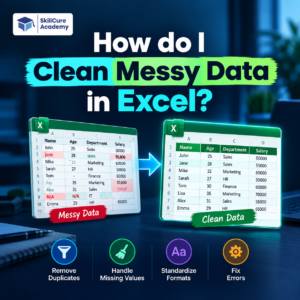

Messy data is one of the most common problems faced by Data Analysts. Before creating reports, dashboards, or performing analysis, you need to make sure that your data is clean, consistent, and accurate.
In Excel, messy data can appear in many forms. You may find duplicate records, extra spaces, inconsistent names, missing values, incorrect formats, or numbers stored as text. If these problems are not fixed, they can lead to incorrect analysis and misleading results.
The good news is that Excel provides several tools and functions that make data cleaning much easier.
In this guide, we will understand how to clean messy data in Excel step by step.
What Is Messy Data in Excel?
Messy data is data that contains errors, inconsistencies, duplicates, missing information, or incorrect formatting.
For example, suppose you have a customer column like this:
| Customer Name |
|---|
| Rahul Sharma |
| rahul sharma |
| Rahul Sharma |
| Rahul Sharma |
| RAHUL SHARMA |
These records may represent the same customer, but Excel treats them as different values because of differences in spaces and capitalization.
Cleaning this data makes it easier to analyze and use.
Common Data Problems in Excel
Before cleaning your data, identify what is wrong with it.
| Problem | Example | Excel Solution |
|---|---|---|
| Extra spaces | " Rahul " | TRIM |
| Duplicate records | Same customer listed twice | Remove Duplicates |
| Different capitalization | "john" / "JOHN" | UPPER, LOWER, PROPER |
| Numbers stored as text | "5000" | VALUE |
| Missing values | Blank cells | Filters / Find & Replace |
| Incorrect dates | Different date formats | Format Cells |
| Unwanted characters | "ABC-123!" | CLEAN / SUBSTITUTE |
| Inconsistent categories | "Delhi" / "delhi" | PROPER / standardization |
Understanding these problems is the first step toward effective data cleaning.
1. Remove Extra Spaces
Extra spaces are very common when data is copied from websites, software, or other files.
For example:
" Amit Kumar "
You can use the TRIM function to remove unnecessary spaces.
=TRIM(A2)
This changes the value into:
Amit Kumar
TRIM is especially useful for cleaning names, addresses, product names, and other text fields.
Why Is TRIM Important?
Extra spaces can cause problems when you:
- Compare two columns
- Find duplicates
- Use VLOOKUP or XLOOKUP
- Create PivotTables
- Apply filters
2. Remove Duplicate Records
Duplicate records can make your analysis inaccurate.
For example, if the same customer appears three times when they should appear once, your customer count or sales analysis may be incorrect.
Excel provides a simple Remove Duplicates feature.
Steps:
- Select your data.
- Go to the Data tab.
- Click Remove Duplicates.
- Select the columns you want Excel to check.
- Click OK.
Excel will identify and remove duplicate rows based on the selected columns.
Important Tip
Always keep a backup of your original data before deleting duplicates.
3. Standardize Text
Sometimes the same information is written in different formats.
For example:
- delhi
- DELHI
- Delhi
- delHi
These may refer to the same location.
Excel provides functions that can standardize text.
PROPER
=PROPER(A2)
Result:
Delhi
UPPER
=UPPER(A2)
Result:
DELHI
LOWER
=LOWER(A2)
Result:
delhi
Choose the format that matches your reporting requirements.
4. Find and Handle Missing Values
Missing values are another common problem in datasets.
For example:
| Employee | Department | Salary |
|---|---|---|
| Amit | Sales | 45000 |
| Priya | HR | |
| Rahul | IT | 55000 |
The salary for Priya is missing.
Before replacing missing values, understand why the value is missing.
Depending on the situation, you may:
- Leave the value blank
- Replace it with a valid value
- Use 0 where appropriate
- Replace it with the average or median
- Remove the record if it is not useful
Do not automatically replace every blank cell with zero. A missing value and a real zero can mean very different things.
5. Convert Numbers Stored as Text
Sometimes numbers look like numbers but are actually stored as text.
For example:
"5000"
instead of:
5000
This can cause problems with calculations.
You can use:
=VALUE(A2)
This converts a number stored as text into a numeric value.
You can also use Excel’s warning icon or Text to Columns to convert certain text values into numbers.
6. Clean Unwanted Characters
Data imported from external sources may contain unwanted characters.
For example:
ABC-123
If you need to remove the hyphen, you can use:
=SUBSTITUTE(A2,"-","")
The result becomes:
ABC123
You can use SUBSTITUTE to replace or remove specific characters from your dataset.
For non-printing characters, the CLEAN function can also help:
=CLEAN(A2)
7. Fix Date Formats
Dates can appear in different formats:
- 23/09/2026
- 09/23/2026
- Sep 23, 2026
- 2026-09-23
Inconsistent date formats can create problems when sorting, filtering, or calculating dates.
Select the date column and use:
Home → Number Format → Date
For more control, use:
Ctrl + 1 → Number → Date
Make sure the underlying values are actually recognized as dates and are not simply text that looks like a date.
8. Use Find and Replace
The Find and Replace tool is useful when you need to correct repeated mistakes.
Shortcut:
Ctrl + H
For example, suppose your dataset contains:
- Delhi
- Delhi City
- New Delhi
If your business definition requires one standard value, you can use Find and Replace to make the necessary corrections.
However, check your data carefully before replacing values because the same word may have different meanings in different contexts.
9. Use Excel Filters to Find Errors
Filters can help you quickly identify unusual or incorrect values.
Select your dataset and go to:
Data → Filter
You can then filter for:
- Blank cells
- Specific categories
- Unusual values
- Incorrect entries
- Unexpected numbers
For example, if an age column contains values such as:
25, 31, 42, 27, 250
Filtering and sorting the column can help you identify 250 as a possible data-entry error.
10. Use Power Query for Larger Datasets
When you regularly clean large datasets, Excel’s Power Query can save significant time.
Power Query allows you to:
- Remove duplicates
- Remove blank rows
- Change data types
- Split columns
- Merge columns
- Replace values
- Remove unnecessary columns
- Combine multiple files
- Create repeatable cleaning steps
One major advantage is that the cleaning process can be refreshed when new data arrives.
This makes Power Query particularly useful for Data Analysts who work with recurring reports.
A Simple Excel Data Cleaning Workflow
A practical data-cleaning process can look like this:
| Step | Task |
|---|---|
| 1 | Create a backup of the original data |
| 2 | Inspect the dataset |
| 3 | Identify missing values |
| 4 | Remove unnecessary spaces |
| 5 | Standardize text |
| 6 | Remove duplicates |
| 7 | Fix numbers and dates |
| 8 | Remove unwanted characters |
| 9 | Check for incorrect values |
| 10 | Validate the cleaned dataset |
Following the same process every time helps reduce mistakes.
Excel Functions Useful for Data Cleaning
Here are some Excel functions every aspiring Data Analyst should know:
| Function | Purpose |
|---|---|
| TRIM | Removes unnecessary spaces |
| CLEAN | Removes non-printing characters |
| PROPER | Capitalizes words |
| UPPER | Converts text to uppercase |
| LOWER | Converts text to lowercase |
| SUBSTITUTE | Replaces specific text |
| VALUE | Converts text into numbers |
| TEXT | Formats values as text |
| LEFT | Extracts characters from the left |
| RIGHT | Extracts characters from the right |
| MID | Extracts characters from the middle |
Learning these functions can make everyday data-cleaning tasks much faster.
Example: Cleaning a Customer Dataset
Suppose you receive this data:
| Customer Name | City | Sales |
|---|---|---|
Rahul Sharma | delhi | 5000 |
Priya Singh | DELHI | 6500 |
Rahul Sharma | Delhi | 5000 |
Amit Kumar | mumbai | 7200 |
You could clean it by:
- Using TRIM for customer names
- Using PROPER for city names
- Converting sales values into numbers
- Checking for duplicate customers
- Standardizing city names
- Checking for missing values
After cleaning, the dataset becomes much easier to analyze.
Why Is Data Cleaning Important for Data Analysts?
Data cleaning is not just an Excel skill. It is an important part of the Data Analyst workflow.
Clean data helps analysts:
- Create accurate reports
- Build reliable dashboards
- Perform better analysis
- Avoid duplicate calculations
- Identify meaningful trends
- Make better business decisions
A dashboard created from poor-quality data can produce misleading results, even if the dashboard itself looks professional.
Final Thoughts
Learning how to clean messy data in Excel is an essential skill for anyone preparing for a Data Analyst career.
Start with basic Excel features such as TRIM, PROPER, Remove Duplicates, Find and Replace, Filters, and formatting tools. As your datasets become larger and more complex, learn Power Query to automate and repeat your cleaning process.
The key is not simply to remove everything that looks unusual. Good data cleaning means understanding the data, identifying genuine errors, standardizing information, and validating the final dataset before analysis.
With regular practice, Excel data cleaning becomes faster, more systematic, and much easier to manage.
Frequently Asked Questions (FAQs)
1. What is data cleaning in Excel?
Data cleaning in Excel means identifying and fixing errors, duplicate records, missing values, extra spaces, inconsistent formatting, and incorrect data types so that the dataset is ready for analysis.
2. Which Excel function is used to remove extra spaces?
The TRIM function is commonly used to remove unnecessary spaces from text.
=TRIM(A2)
It is especially useful when cleaning names, addresses, product names, and other text-based data.
3. How do I remove duplicate data in Excel?
Select your dataset, go to Data → Remove Duplicates, select the columns you want Excel to check, and click OK. Always keep a copy of the original dataset before removing duplicates.
4. How can I clean inconsistent text in Excel?
You can use functions such as PROPER, UPPER, LOWER, TRIM, and SUBSTITUTE to standardize text. For example, =PROPER(A2) can convert inconsistent capitalization into a standard format.
5. Is Excel good for cleaning large datasets?
Excel is useful for many data-cleaning tasks, but very large or recurring datasets may be easier to manage with Power Query. Power Query can automate steps such as removing duplicates, changing data types, replacing values, and combining data from multiple sources.